Add a seat map to your site
Sell reserved seats on your own website: put an event on a venue's seating plan, let the buy modal show its Seats step, or place the seat explorer and the cart on your page yourself, in your brand's colours.
In short. Pin a venue's live seating plan to an event, then sell its seats on your site through the buy modal or the seat explorer beside the cart.
When to use this#
Use this when
Your event is seated: a theatre, a concert hall, an arena with numbered seats, and buyers should choose where they sit.
You sell on your own website, with the Elements, and want the seat map in your brand.
Use something else when
The event is general admission: a ticket type with a capacity is all it needs, and the buy modal shows Tickets.
You sell on Live Storefront only: it shows the same seat map without any code.
What you'll build#
- Venue planThe room, drawn once, marked live
- Event planCategories per seat, production kills
- Your siteAn allowed origin on the channel
- Seat mapThe buy modal, or the explorer and the cart
- They buyTap a seat, choose the type, pay
What the buyer gets#
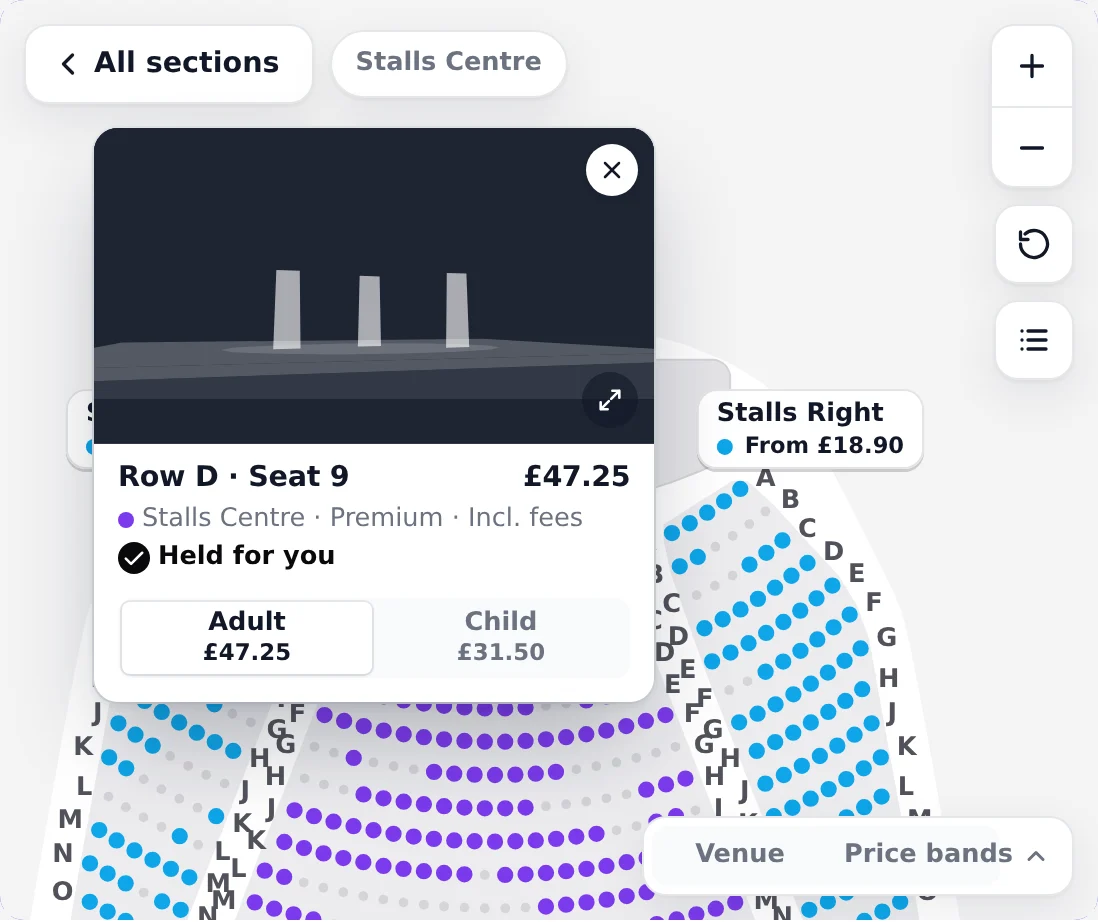
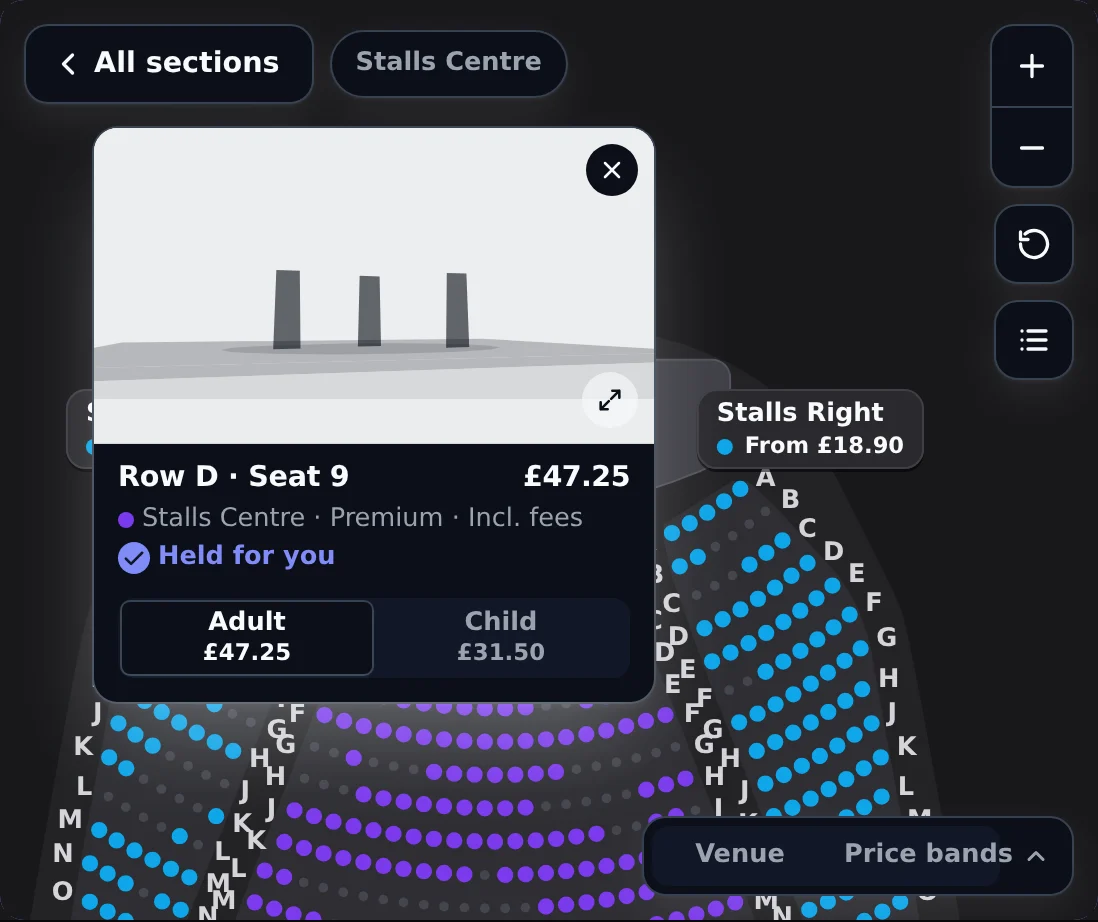
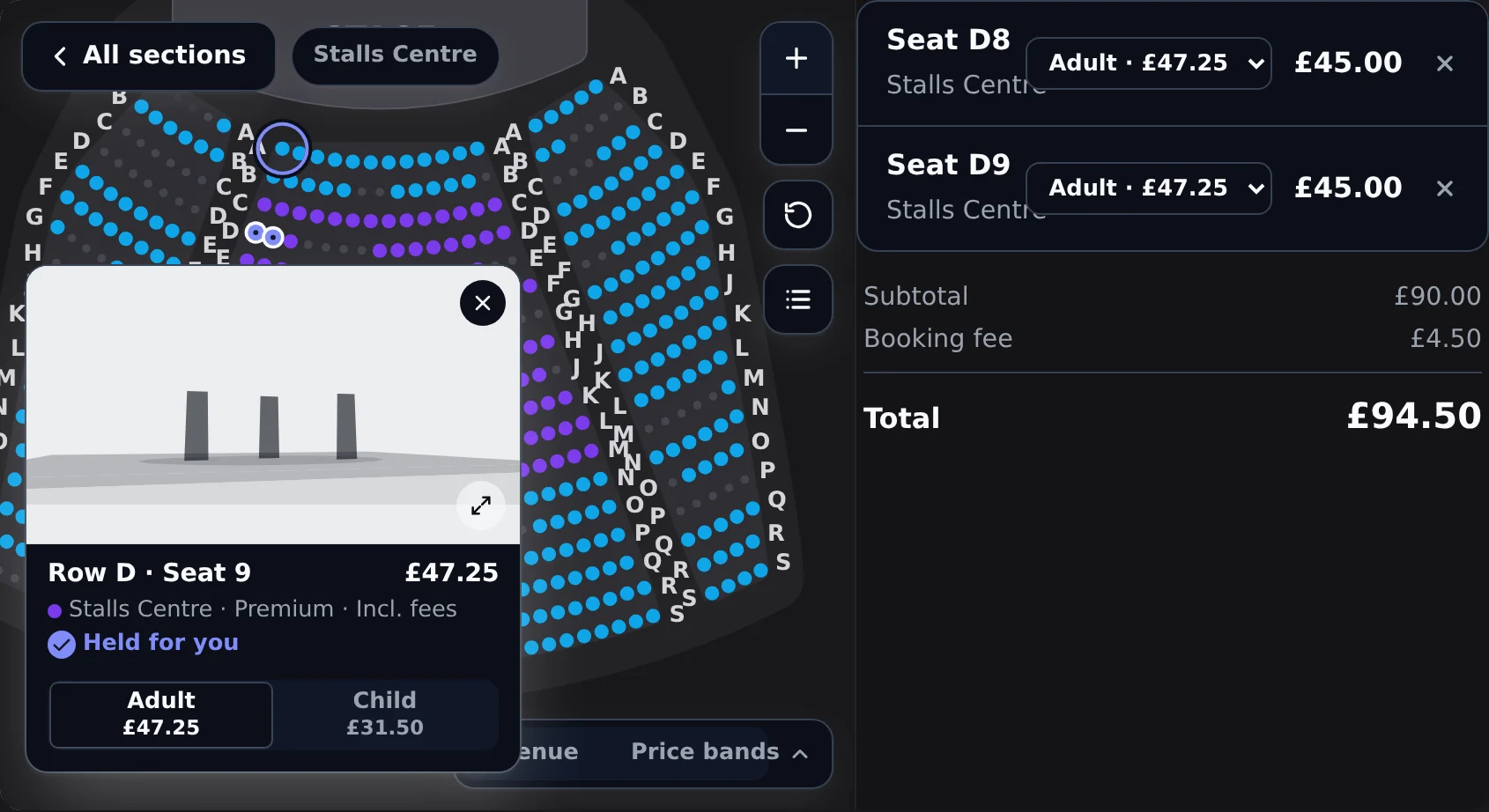
Tapping a seat reserves it at once, on its category's standard ticket type, and pins a card beside it. There is no step in between: the seat is in the cart, held for the buyer until the cart expires or they pay. Tapping it again gives it back.
- The card,
tl-seat-card, says which seat it is (row, seat, section and price category), its price including fees, and draws the view from the seat. A tap on the picture opens the view larger. - Changing the type is the card's
tl-price-picker: the ticket types the seat's category is priced for, Adult or Child for example. Changing it keeps the seat: the reservation stays and only the price moves. The cart offers the same choice per seat line. - The key,
tl-map-key, shows each price category's colour and lowest price, and a minimap of the venue to choose a section from. - The venue in 3D, when the venue has a 3D model: a toggle beside the zoom buttons shows the levels, flies into a section and puts every seat where it really is, in the flat map's colours. A tap there holds a seat exactly as on the flat map. The model is loaded only when the buyer presses the toggle, so a buyer who stays on the flat map downloads none of it, and a browser that cannot draw 3D keeps the flat map without the toggle.
- How many tickets is asked in the buy modal, beside the map, with suggestions for that many seats together; on your own page the buyer taps as many seats as they want, up to the channel's limit per order.
- A seat that has just gone is refused with the nearest free seat offered instead.
- A single empty seat left between two taken seats, or against the end of a row, is not allowed online: the map says so and offers the same number of seats shifted along, so nobody strands a seat that cannot be sold.
- Without a pointer, the arrow keys move between sections and then between seats, Enter takes one and Escape steps back. Every hold, release and lost seat is announced, and a list of each section's seats is the alternative to the map. A seat's state is never told by colour alone.
Before you start#
- An organisation in test mode. Everything here is safe to try there.
- A venue with a seating plan whose version is live. Someone with permission to manage the venue publishes a version and marks it live (Make a basic seating map has the clicks).
- An event at that venue with ticket types priced per category, listed on a website sales channel with a publishable key.
- Your site already loads the Elements: the HTML quickstart, the Vite quickstart or the Next.js quickstart.
Steps#
Put the event on the seating plan#
An event plan pins one live version of the venue's seating plan and lays the event over it: which price category each seat is in, and which seats production kills. The venue's plan is not copied, so a change for this event never moves a seat for another.
Open Events, then the event, then Seating. Choose the venue's live seating plan, add the price categories with their colours, paint the seats into them, and kill any seats the production needs. Price each category on the event's Tickets page. A tapped seat takes the first ticket type on sale for its category on the channel, in the order of the event's ticket types. Make a basic seating map walks through it.
Create the plan on a live venue plan version, then assign seats by their index in that version. A category's defaultTicketTypeId is the type a tapped seat takes; left out, it is the first ticket type priced for the category on the channel.
curl -X POST https://api.ticketlayer.com/v1/events/evt_.../event-plan \
  -H "Authorization: Bearer tlak_..." \
  -H "X-Ticketlayer-Org: your-org-slug" \
  -H "Content-Type: application/json" \
  -d '{ "venuePlanVersionId": "vpv_...",
        "categories": [
          { "name": "Premium", "color": "#7c3aed", "defaultTicketTypeId": "tt_..." },
          { "name": "Standard", "color": "#0ea5e9" } ] }'

curl -X PUT https://api.ticketlayer.com/v1/events/evt_.../event-plan/seat-categories \
  -H "Authorization: Bearer tlak_..." \
  -H "X-Ticketlayer-Org: your-org-slug" \
  -H "Content-Type: application/json" \
  -d '{ "assignments": [ { "categoryId": "cat_...", "seats": [120, 121, 122] } ] }'
Let your site load the map#
The seat map is read from Ticketlayer's edge with a short-lived token that Live mints only for a page on one of the channel's allowed origins. Add every origin your site serves from.
Open Sales channels, then the website channel, and add your site to its Allowed origins, for example https://tickets.example.com.
The channel's customerFacing.allowedOrigins. A page on any other origin gets ORIGIN_NOT_ALLOWED.
curl -X PATCH https://api.ticketlayer.com/v1/sales-channels/ch_... \
  -H "Authorization: Bearer tlak_..." \
  -H "X-Ticketlayer-Org: your-org-slug" \
  -H "Content-Type: application/json" \
  -d '{ "customerFacing": { "allowedOrigins": ["https://tickets.example.com"] } }'
Let the buy modal show its Seats step#
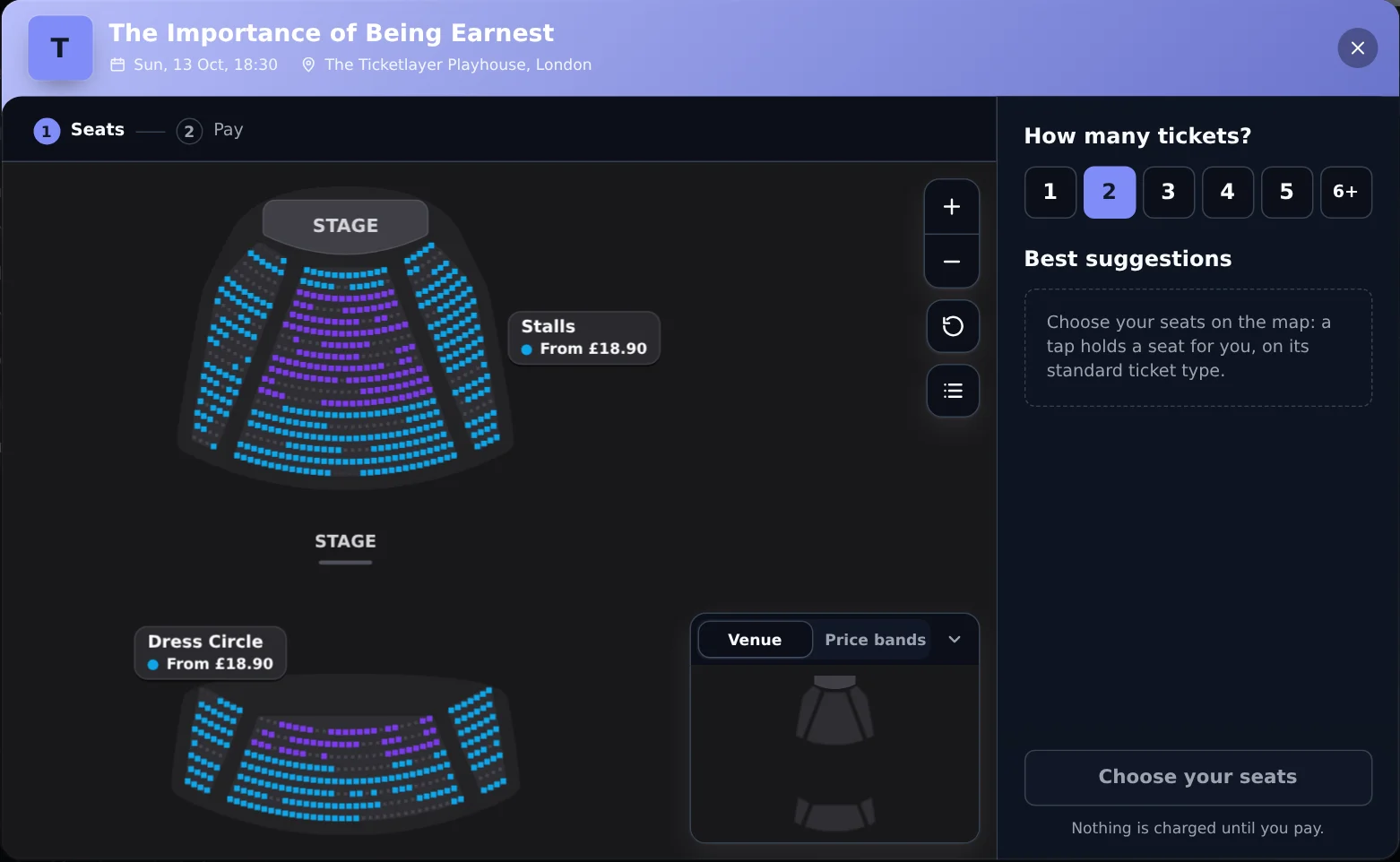
The quickest seat map is the one you already have. The buy modal asks whether the date the buyer picks is seated, and if it is, shows Seats where it would show Tickets: the map across the sheet, and beside it "How many tickets?" with the best suggestions for that many.
Nothing to switch on. A date of an event with an event plan is seated, so its buy button opens on the map; a general admission date of the same event keeps the Tickets step.
The buy button from the quickstart opens the buy modal for its event. The demo night below opens the same modal.
<tl-buy-tickets-button event-id="evt_..." size="lg"></tl-buy-tickets-button>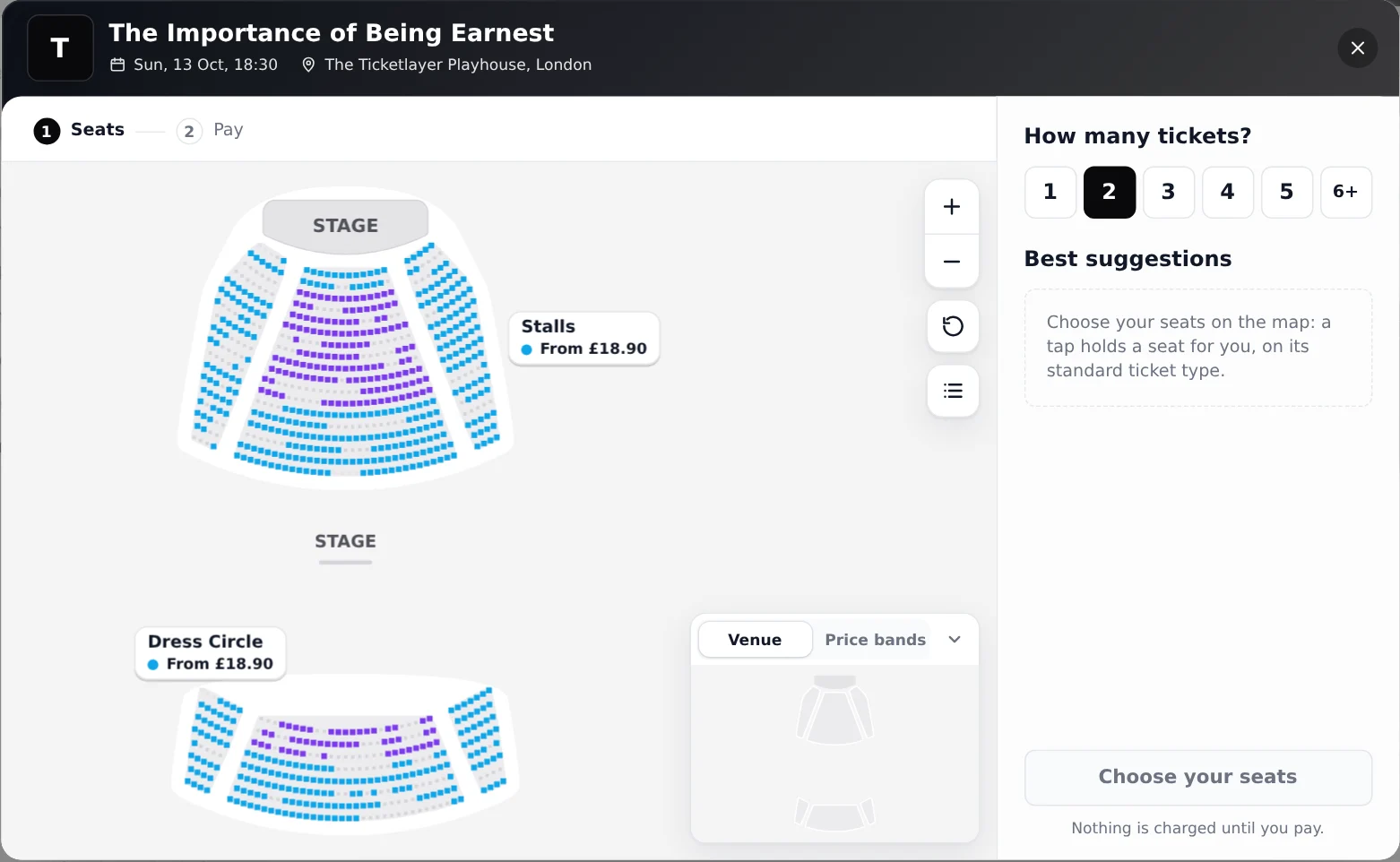
Or place the seat explorer yourself#
For a seat map on the page rather than in a modal, place tl-seat-explorer with tl-cart beside it. They share the cart: a seat tapped on the map is a line in the cart, a type changed in the cart changes on the card, and a seat given back in either is gone from both.
Copy the ids the elements need: the event's id from Events, then the event, and the date's id from the event's Occurrences.
The explorer fills the box you give it, so give it a height. It starts on the flat map; dimension="3d" starts it in the venue in 3D where the venue has a model, and on the flat map where it has none. tlSeatSelect says a seat was held or given back, by its index in the venue plan version and its section; tlCartChange lists every seat held for the date. Never store the index as a seat's identity: the cart line carries the label, section, row and number.
With the loader script from the HTML quickstart in the page's head:
<div class="seats">
  <tl-seat-explorer event-id="evt_..." occurrence-id="eo_..."></tl-seat-explorer>
  <tl-cart></tl-cart>
</div>

<style>
  .seats { display: grid; grid-template-columns: 1fr 320px; gap: 1rem; }
  .seats tl-seat-explorer { height: 560px; }
  @media (max-width: 720px) { .seats { grid-template-columns: 1fr; } }
</style>

<script>
  const map = document.querySelector('tl-seat-explorer');
  map.addEventListener('tlSeatSelect', (e) => {
    const { seat, sectionId, selected } = e.detail;
    console.log(selected ? 'held' : 'given back', seat, sectionId);
  });
  map.addEventListener('tlCartChange', (e) => {
    document.title = `${e.detail.seats.length} seats held`;
  });
</script>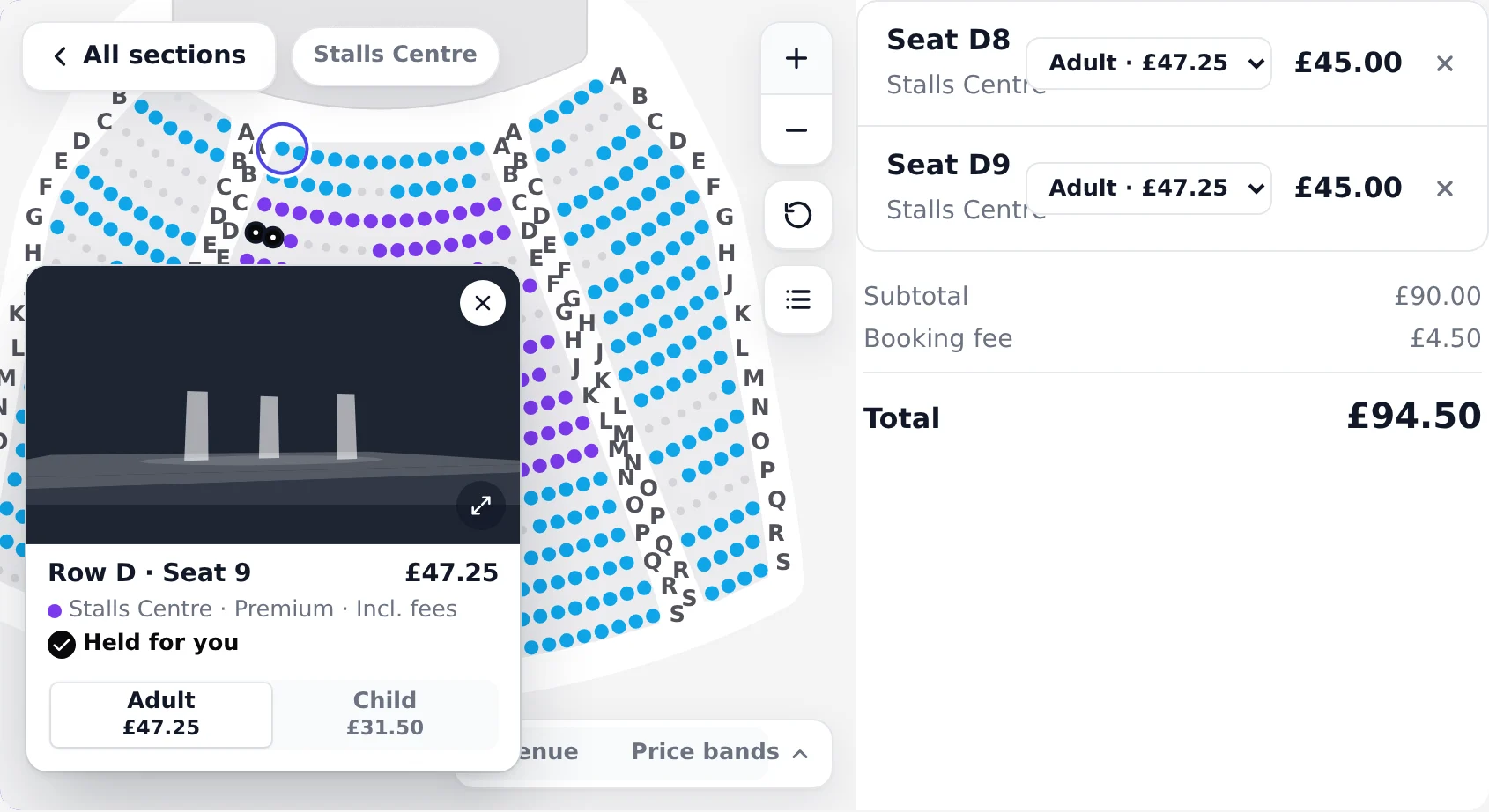
Match your brand#
The map takes its colours from the theme tokens. The seats' price category colours are the event plan's; everything else on the map is a token.
Set the brand colour in the channel's theme and it reaches the map on its own: a held seat, its ring and an available seat with no category colour are drawn in it. The category colours are set on the event's Seating.
The map's own tokens are --tl-map-* (the background, the plates, the sections, the labels and the price pins), --tl-stage-* and --tl-seat-* (each state, the held seat and the sizes seats are drawn at); the Elements reference lists them all. The map reads them once, when it first draws, so set them in a stylesheet rather than from a script afterwards. They reach the explorer inside the buy modal too.
:root {
  --tl-map-background: #f7f5f2;
  --tl-map-section: #ebe7e1;
  --tl-stage-fill: #1f2937;
  --tl-stage-label: #f9fafb;
  --tl-seat-unavailable: #d6d3d1;
  --tl-seat-selected: #b91c1c;
  --tl-seat-selected-ring: #111827;
  --tl-map-pin-active: #b91c1c;
  --tl-seat-scale: 0.45;
}
Check it in test mode#
Open your page on an allowed origin, open the seated date and tap a seat: it turns into a held seat with its card, and the cart shows a line with the seat's row and number on the standard ticket type. Change the type, give the seat back, then try to leave a single empty seat between two held ones: the map refuses and offers a shifted pair. Pay with a test card and the order carries the seats.
Go live#
Take the organisation out of test mode, then check the channel's allowed origins list your production site and nothing you no longer serve.
Moving from tl-seat-map#
tl-seat-explorer replaced tl-seat-map, which framed the hosted box office's map, and tl-seat-map is no longer in the Elements: on a page that loads a current version, a <tl-seat-map> tag draws nothing. The explorer draws the map itself, needs no frame and reserves on a tap. To move an embed:
- Rename the tag to
tl-seat-explorer(TlSeatMaptoTlSeatExplorerin React), keepoccurrence-idand addevent-id, which the prices come from. - Drop
api-url,hbo-url,widthandheight: the explorer reads Live through the page's client, and fills the box its stylesheet gives it. tlSeatAddedandtlSeatRemovedbecome one event,tlSeatSelect, withselectedtrue or false.tlCartChangecarriesseats, indexes in the venue plan version, where it carriedseatIds.- Code that held seats through the cart manager's
addSeatandremoveSeatcallsreserveSeatandreleaseSeatinstead, with the seat's index in the venue plan version.
Troubleshooting#
- The buy modal shows Tickets, not Seats: the date's event has no event plan, or the event plan's venue plan version is not one the date sells from. Check the event's Seating.
- The map does not load and the console shows
ORIGIN_NOT_ALLOWED: the page's origin is not on the channel (step 2). The origin includes the scheme and any port. - "You can hold up to 10 seats in one order": the channel's seat limit per order for a date, 10 unless the channel's selling rules set another, and never more than 50.
- A seat is refused straight after it looked free: another buyer held it first. The map refreshes within a couple of seconds and offers the nearest free seat.